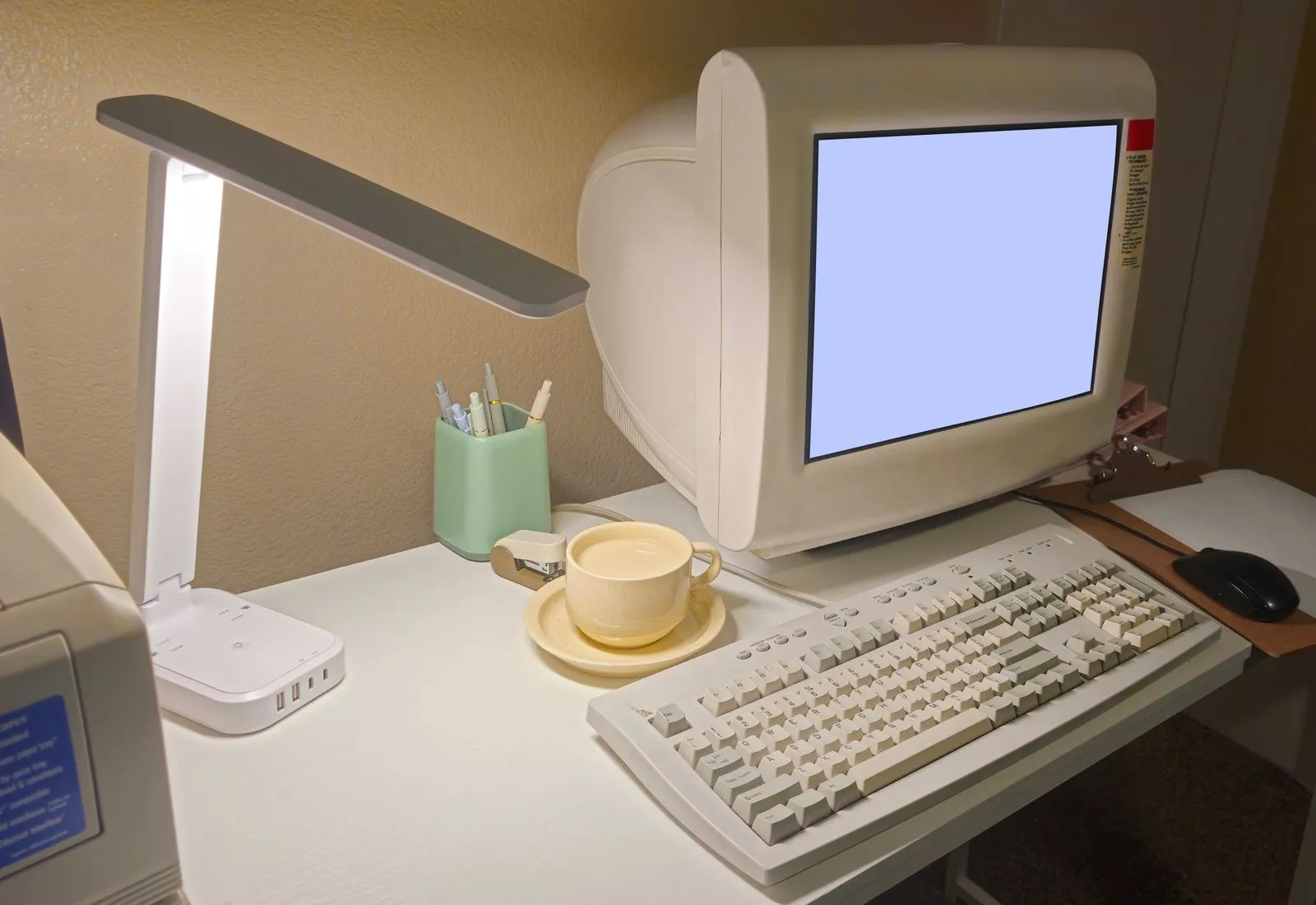
A retro computer may have a video connector your modern monitor does not recognize. The right setup depends on more than whether a cable fits: video standards, signal type, resolution, and refresh rate all matter. Start by identifying the computer’s output and the display’s supported inputs. Then choose an adapter or converter designed for that signal. A few checks before connecting can save you from a blank screen, distorted colors, or unnecessary purchases.
Identify the Video Output
Look at the computer’s rear panel and consult its manual, label, or model-specific documentation. Common outputs include composite video, S-Video, component video, VGA, and, on some older systems, RGB through a proprietary or multi-pin connector. Connector shape alone does not always identify the signal, so check the computer’s documentation before ordering a cable.
Composite video usually uses a single RCA-style jack, while S-Video has a small round connector with multiple pins. VGA typically uses a 15-pin connector, and component video commonly uses three color-coded RCA connections. Some computers also send video through an RF output intended for a television. These formats are not interchangeable just because adapters are available.
Match the Signal to the Display
Check the monitor or TV’s input list and manual for supported connections and video modes. A display with HDMI may not accept an analog signal directly, even if a passive cable physically connects the devices. In that case, you need an active converter that translates the computer’s signal into a format the display supports.
Pay attention to signal direction and conversion type. A device labeled VGA-to-HDMI may not work in reverse, and a simple plug adapter may only change the connector without converting the signal. If the computer outputs composite video and the display accepts HDMI, look for a composite-to-HDMI converter that specifically supports the expected input format.
Check Resolution and Timing
Older computers may output low resolutions, unusual refresh rates, or television-standard signals that newer monitors do not accept. Check the computer’s specifications and the converter’s supported input modes. Also review the display’s manual for its supported resolutions and refresh rates, especially if you are connecting to a computer monitor rather than a television.
Some converters scale an incoming image to a resolution the display can use; others do not. Scaling can make a picture easier to display, but it may soften text or change the image’s proportions. If the picture looks stretched, check for an aspect-ratio setting on the converter or display. For unstable images or no picture, confirm the signal type and supported timing before replacing equipment.
Test Before You Buy
Write down the computer model, its exact video output, and the display’s available inputs. Use those details to compare adapter specifications, including input and output direction, signal format, supported resolutions, and whether the device needs external power. Read the manufacturer’s documentation rather than relying on a product photo or a listing that only names the connector types.
When possible, test with a known-working cable and display, changing one part of the setup at a time. Connect the computer and display while powered off if their manuals advise it, then select the correct display input. If there is no image, reseat the connections and verify the converter’s power and settings. Boulder Byteworks can help identify vintage video connections and narrow down compatible options.
A reliable connection starts with identifying the computer’s actual video signal, not just matching connector shapes. Confirm that the adapter converts in the right direction and supports the computer’s output and display’s input modes. Keep the model numbers and manuals handy while comparing options, or ask a retro-computer specialist to help check compatibility before you buy.